Email Notification in CalendarAnything | LWC
If your business has requirements that go beyond our out-of-the-box features, reach out - we offer custom development services for CalendarAnything to meet your unique needs.
CalendarAnything LWC allows users to enable email notifications for your calendars.
In this article you will learn how to:
Enable Email Notifications
To enable Email Notifications for your calendar:
- Open Calendar Settings for the Calendar where you want to turn on email notifications
- Navigate to Email Notification Tab

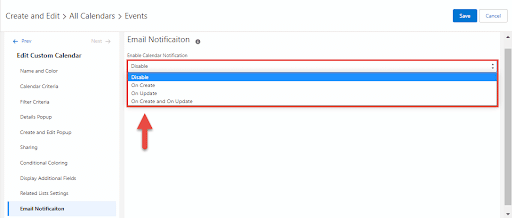
On Enable Calendar Notifications select what type of notifications you want to receive;
– Disabled – no notifications.
– On Create – sends notifications when a new record is created.
– On Update – sends notifications when the record is updated.
– On Create and On Update – sends notifications when the record is created or updated.
To Add Recipients:
- Click on “+ Add” button;
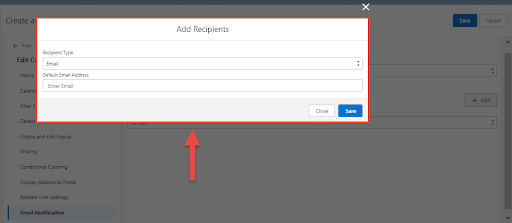
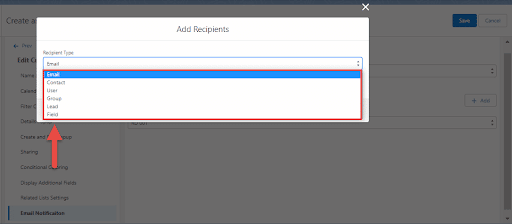
- Select Recipient Type;
- for the Email type you need to add Default Email Address
- for the Contact type you need to add Contact
- for the User type you need to add User
- for the Group type you need to add Group
- for the Lead type you need to add Lead
- for the Field type you need to add Field with email
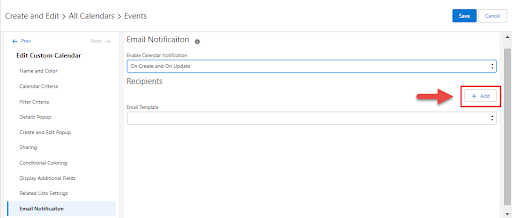
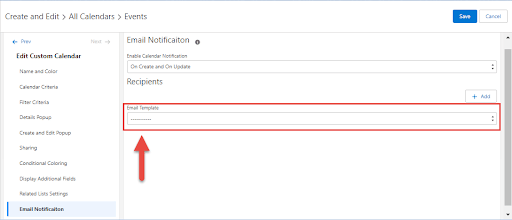
You also can select Email Template for your Notifications
Note:
Email Templates works only with Contact and Lead recipient types
Email Templates don’t work for Event and Task objects.
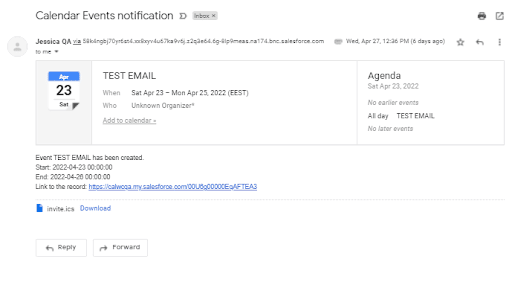
Email Example: