Microsoft Teams + Outlook Calendar for CalendarAnything
If your business has requirements that go beyond our out-of-the-box features, reach out - we offer custom development services for CalendarAnything to meet your unique needs.
In this article:
- Add Microsoft Teams in Remote Site Settings
- Login to Microsoft Teams
- Enable Microsoft Team Tabs
- Send Messages
- Create Web Calendar with Outlook Integration
- Logout from Microsoft Teams
Add Microsoft Teams in Remote Site Settings
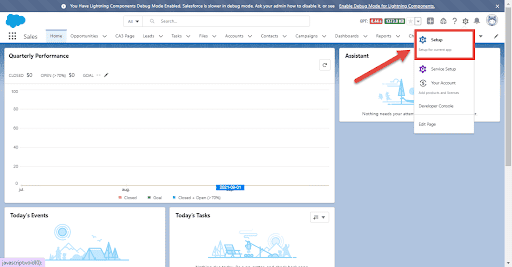
1. Navigate to Salesforce Setup
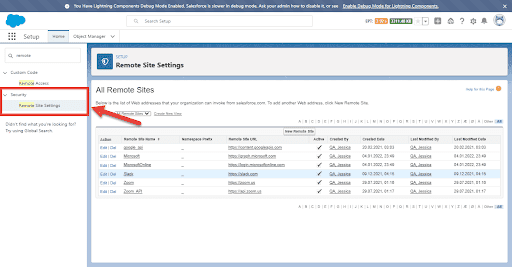
2. Security > Remote Site Settings
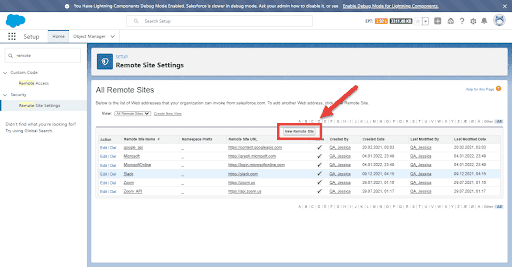
3. Add Remote Site
Name: Microsoft
URL: https://graph.microsoft.com
4. Add Remote Site
Name: MicrosoftOnline
URL: https://login.microsoftonline.com
Login to Microsoft Teams
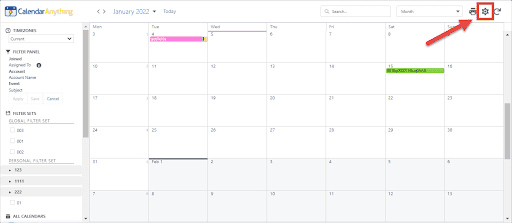
Go to CalendarAnything Settings Gear
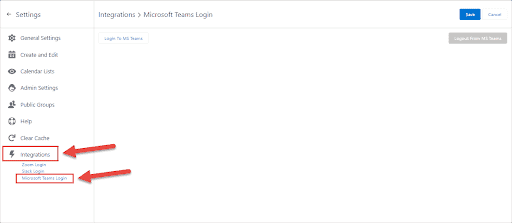
Integrations > Microsoft Teams Login
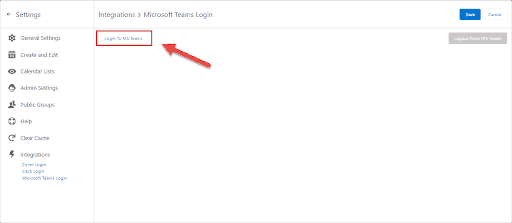
Click Login To MS Teams button
Enable Microsoft Team Tabs
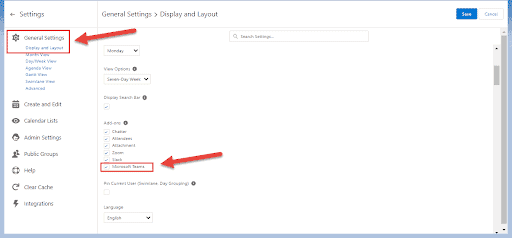
Go to CalendarAnything Settings. Select General Settings, in Display and Layout section navigate to Add-ons display setting and enable Microsoft Teams add-on. Click Save.
Send Messages
Left click on a record within CalendarAnything
Open Microsoft Teams Tab
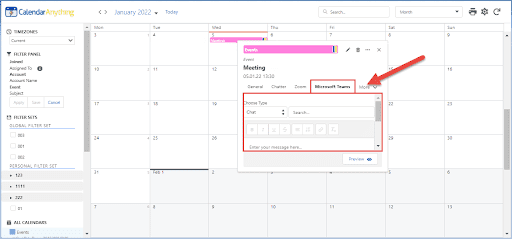
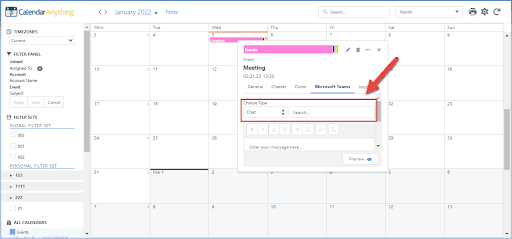
Choose Type, search Chat or Teams
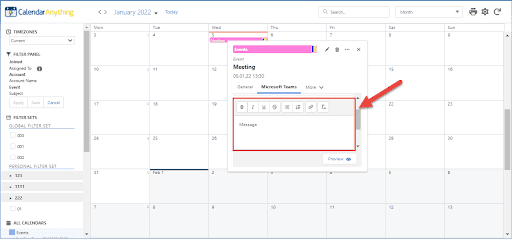
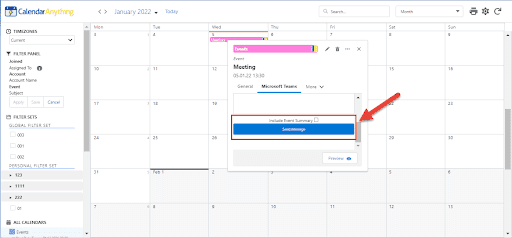
Add Message and scroll down to send message
Create Web Calendar with Outlook Integration
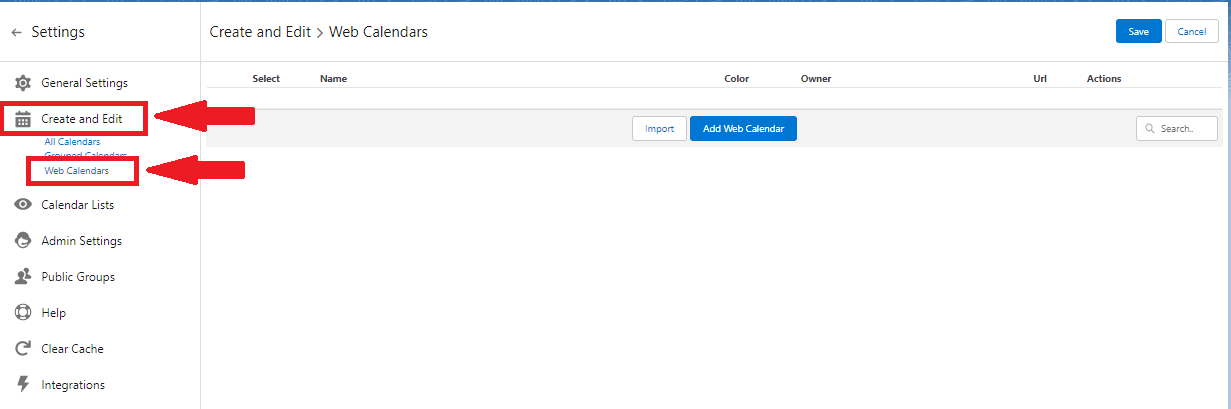
Go to CalendarAnything Settings Gear > Create and Edit > Web Calendars
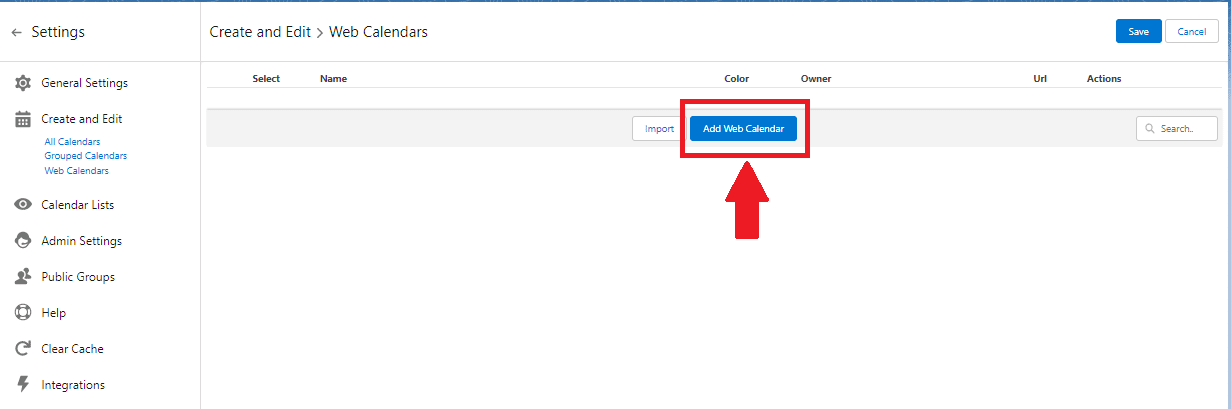
Click Add Web Calendar
On the Name and Color Tab, open External Calendars picklist.
Here you can find all the calendars available to you in Outlook
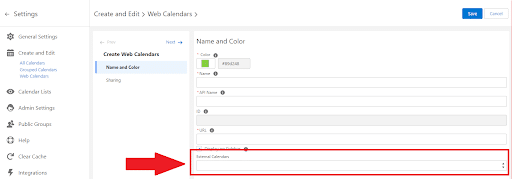
Select one of available Outlook Calendars, and click the Save button.
Logout from Microsoft Teams
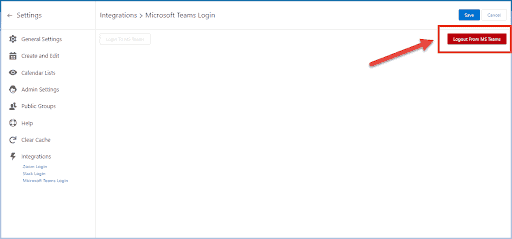
Go to CalendarAnything Settings Gear > Integrations > Microsoft Team Login > Logout from MS Teams > Save