Grant Silverline Login Access
If you need help resolving a problem, you can grant a Silverline administrator or a support representative login access to your account.
Watch this demo to see how you can grant login access.
Required Editions
Available in: both Salesforce Classic and Lightning Experience
Available in: all editions
Granting administrator access is available in: Enterprise, Performance, Unlimited, Developer, and Database.com Editions
User Permissions Needed
To view setup audit trail history: View Setup and Configuration
By default, your company’s administrators can access your account without any action from you. If your organization requires users to grant login access to administrators, you can grant access for a specified duration. You can also grant access to a Silverline support representative.
For security reasons, the maximum period for granting access is 1 year. After you grant access, administrators or support representatives can use your login and access your data to help you resolve problems.
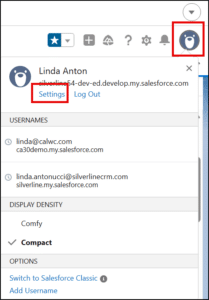
- At the top of any CalendarAnything page, click your image, and then click Settings.
- In the Quick Find box, enter Grant, and then select Grant Account Login Access.
- To set the access expiration date for your company’s administrator or for Silverline support, choose a value from the Access Duration picklist.
- Save your work.
If an administrator, support representative, or publisher makes setup changes using your login, the setup audit trail lists the changes and the username. In some organizations, records of clicks made by an administrator logged in as you are also kept for auditing purposes.
Note! If your administrator has restricted access to certain support organizations, you can’t grant access to these organizations. Packaged application licenses can also prevent access.
Note! You can’t use the Grant Account Login Access feature to grant other general users access to your account.