How Sharing, Visibility, and Salesforce Access Work Together
There are three separate concepts to keep in mind when configuring a calendar:
1. Sharing = Who has access to the calendar?
The Sharing section determines who is allowed to access the calendar.
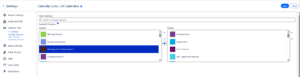
Once users have access, the calendar becomes available in their Calendar List under Available. They can move it to Selected if they want to display it on their calendar.
Example:
You select the Marketing Team under Sharing.
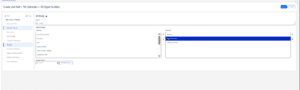
→ Marketing Team members get access to the calendar.
→ The calendar appears in their Calendar List > Available.
→ They can move it to Selected to display it.
2. Visibility = Who sees the calendar by default?
The Visibility section does not grant access to the calendar.
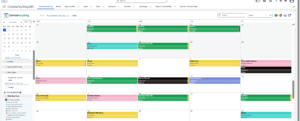
Instead, it determines whether the calendar is automatically displayed in the calendar panel for users who already have access.
This saves users from having to go to Calendar List and manually move the calendar from Available to Selected.
You can select a public group, profile, role, or combination of these to give users access to the calendar.
Example:
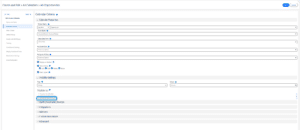
You select the Marketing Team under Visibility.
→ Visibility does not give the Marketing Team access.
→ They must already have access through Sharing.
→ Because Visibility is configured for them, the calendar can automatically appear in their calendar panel.
→ They do not need to manually move it from Available to Selected in the calendar list section.
Important: Sharing gives access. Visibility controls the default display. Visibility alone never grants access to the calendar.
3. Salesforce Permissions = What information can the user see?
The standard Salesforce access rules still apply.
Even if a user has access to the calendar through Sharing and the calendar is configured to appear automatically through Visibility, the user must still have the appropriate Salesforce permissions to see the information displayed on the calendar.
At a minimum, the user needs Read access to the relevant Salesforce object and the fields used by the calendar.
Calendar Anything does not grant or expand Salesforce permissions. It does not give users access to objects, records, or fields that they cannot already access in Salesforce.
For example:
→ A user has access to the calendar through Sharing.
→ The calendar is configured to appear automatically through Visibility.
→ However, if the user does not have Salesforce permission to access the object or field used to display a particular piece of information, that information will not be made visible by Calendar Anything.
How everything works together
Calendar Anything controls calendar access and default display, but it does not override Salesforce security. Users can only see Salesforce data that they already have permission to access.
Salesforce Permissions
User must have permission to access the relevant Salesforce data
↓
Sharing
User is given access to the calendar
↓
Visibility
Calendar is automatically displayed for that user
↓
Result
The user sees the calendar and the Salesforce information they are authorized to access.
The easiest way to remember
- Salesforce Permissions = Data Access
What Salesforce information is the user allowed to see? - Sharing = Calendar Access
Who can access the calendar? - Visibility = Default Display
Who should see the calendar automatically?