Optimizing Calendar Performance | LWC
In this article:
There can be different reasons behind a calendar that is loading slower than usual. In some cases, the CalendarAnything LWC app is not on the latest version in your org. In other cases, this is due to a large amount of records that the calendar has to retrieve and display. This can be optimized in different ways, which you can read about here.
You can also watch a demo to follow along!
Before applying any changes, please check your current CalendarAnything LWC version. It’s recommended to update to the latest version, as that will ensure the smoothest experience for you.
Data Loading Limits & Continuous Data Loading
When calendar loading is slow, enabling settings such as Data Loading Limits and Continuous Data Loading can help improve calendar rendering by splitting data into smaller requests, rather than attempting to load everything at once. For example, if a calendar has 5,000 records, a limit of 1,000 with Continuous Data Loading enabled allows the system to retrieve the records in five separate requests of 1,000 records each.
With these settings enabled, you should have seen some improvement in loading times as your team continued using the application. Note: These need to be set up for each calendar individually.
Steps to enable:
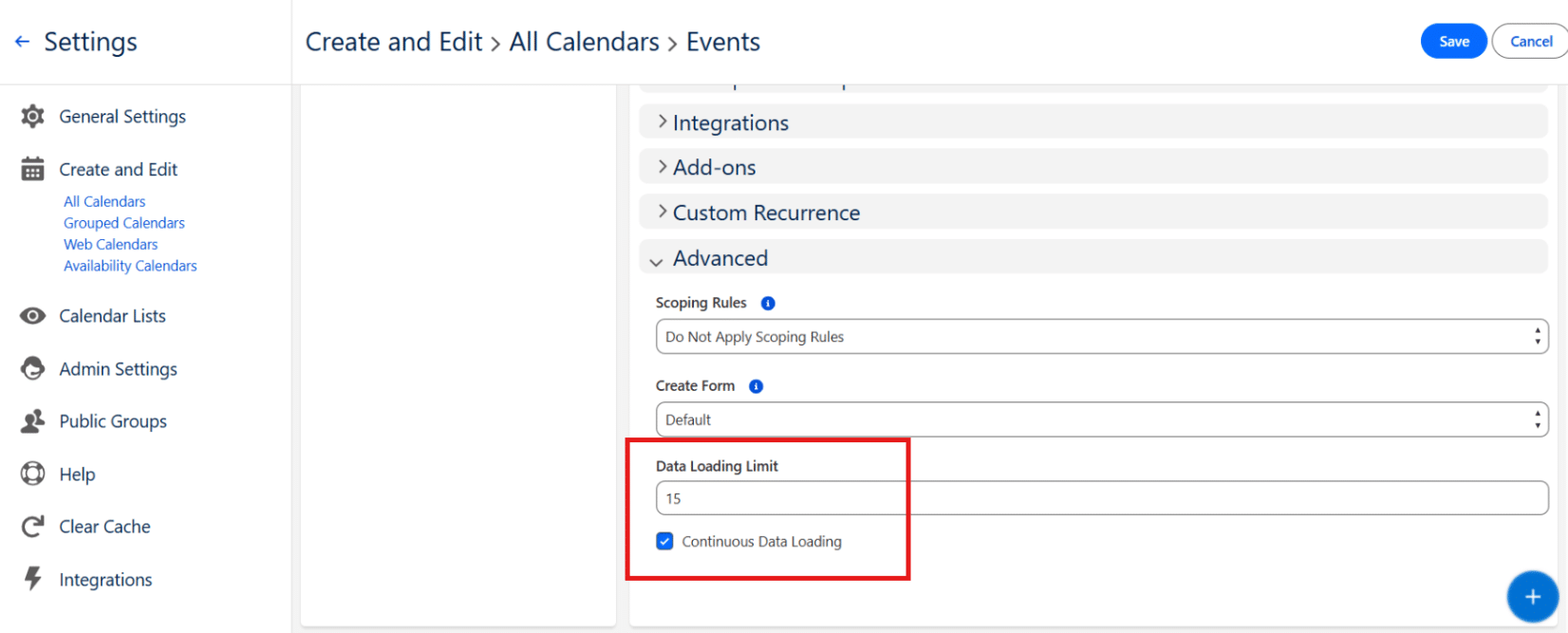
- In CalendarAnything LWC app, click on the context menu of the calendar of choice. Select Edit.
- Go to Calendar Criteria. Scroll down to the Advanced section and click on it to expand the section.
- Enable Data Loading Limit with a relatively low number compared to the amount of data that calendar displays.
- Check the box for Continuous Data Loading to enable it.
- Click “Save” in the upper right corner.
Alternate ways to optimize calendar loading
-
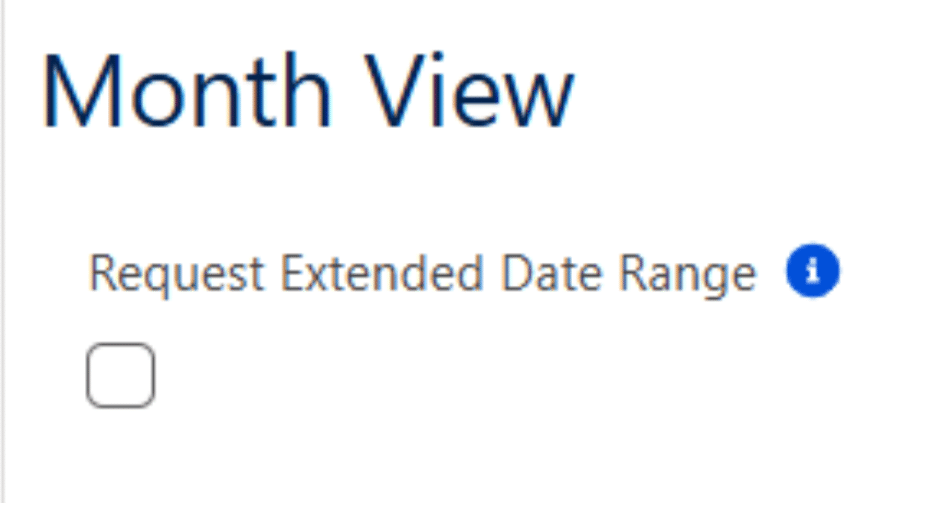
Disable “Request Extended Date Range”:
Checking this box increases the data request to load a 120-day window on scroll instead of 60 days. It is important to note that this setting is not recommended for organizations with a lot of data, as it can decrease your calendar performance. When disabled, the calendar will only load the current period, which means that it is retrieving less data at a time, which will improve the performance.
To disable: Go to General Settings (Calendar gear icon) > Month View > Request Extended Date Range
-
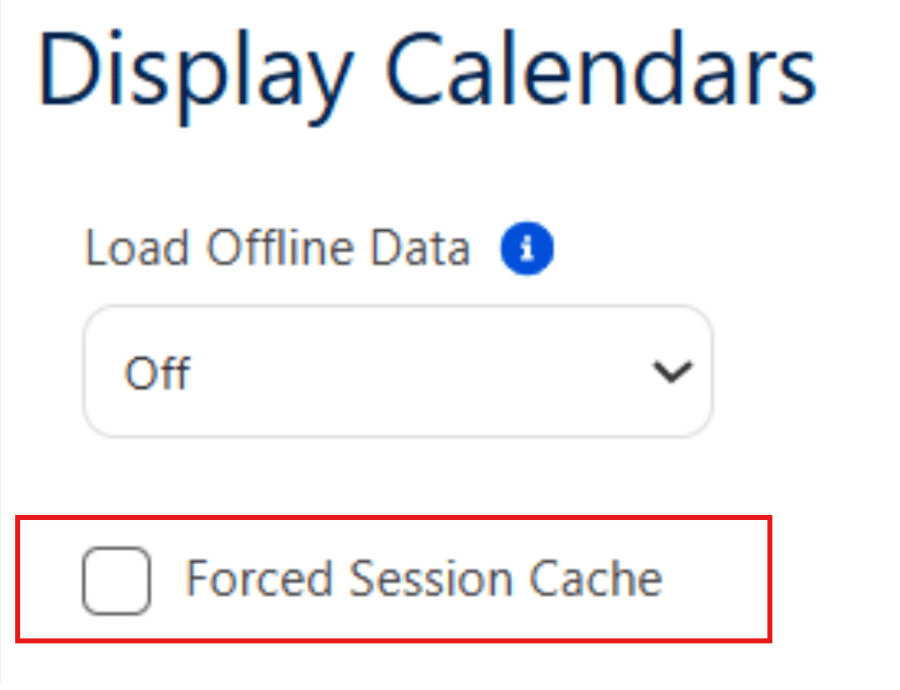
Enable Forced Session Cache (For mobile):
If enabled, more info is stored on the client side. On the first load, it can still take some time to load and compile, but by the next load, it will be faster. (By default, the cache updates every 60 minutes. This may vary if there is a custom page with a custom parameter).
To enable: Go to General Settings (Calendar gear icon) > Display Calendars > Forced Session Cache