Managing Availability Appointment Bookings
If your business has requirements that go beyond our out-of-the-box features, reach out - we offer custom development services for CalendarAnything to meet your unique needs.
CalendarAnything’s Availability Scheduling feature automates resource appointment scheduling and includes a set of Resource Usage options to apply round-robin scheduling logic. For example, you can balance appointments among resources, give list order preference to under-booked resources, and ensure at least one resource is available for specific time slots.
Benefits
Automated resource scheduling applies logic to balance appointment counts among resources and prevent specified time slots from having no resource support. Settings can be configured to:
- Give booking priority to under-booked resources.
- Set a maximum number of times a resource can be booked during a single day.
- Define a maximum permitted difference in number of booked slots among resources.
- Specify a Boolean or a Boolean formula field as the Balance Usage Criteria Field. Only bookings where this field is TRUE will be counted by the balancing logic.
- Set a maximum number of appointments that can be booked for a given time slot.
CalendarAnything provides you with options to account for exceptions to the rule when applying round-robin logic.
In this article:
- Giving Priority to Under-Booked Resources
- Setting Maximum Daily Bookings
- Setting Maximum Difference Between Resource Bookings
- Setting Criteria for Bookings to Include in Balancing Logic
- Setting a maximum number of appointments that can be booked for a given time slot.
Giving Priority to Under-Booked Resources
Users are more likely to select items that appear earlier in a list. Balance resource schedules by placing under-booked resources higher up on the selection list.
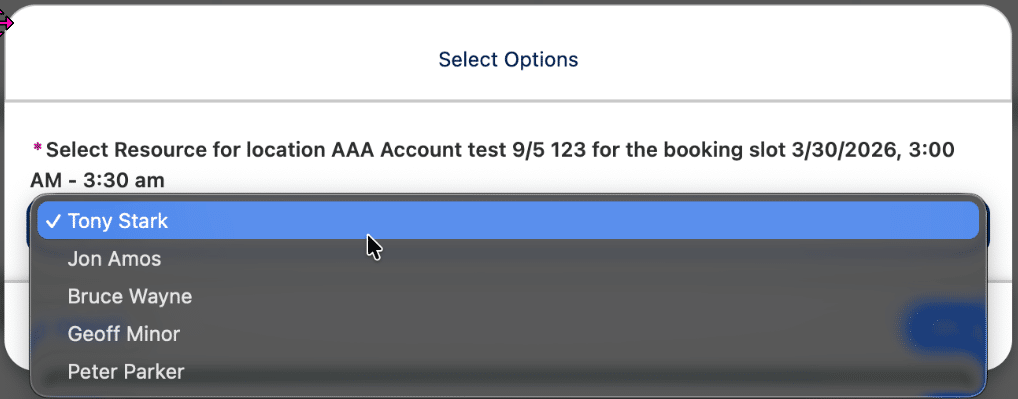
To update a calendar to use Priority, follow these steps:
- From the CalendarAnything sidebar, right-click the Availability calendar.
- Select Edit from the context menu.
- From the step menu, select the General step and:
- Set Joint Mode to Resource or Resource + Location.
- Set Booking Slot Mode to Current slot only.
- Set Booking Resource Mode to One resource only.
- Select the Resource step. From the Priority field dropdown, select a number field to use as the Priority.
- Click Save.
Setting Maximum Daily Bookings
You can set a maximum number of times a resource can be booked during a single day. Two fields apply—a default maximum and a resource-level maximum. The lowest of the two is always applied unless the default is set to zero, in which case the resource-level maximum is applied. When a maximum is reached for a resource, the remaining availability slots for that resource will be hidden for the rest of the day.
Default Maximum | Resource Maximum | Daily Booking Maximum |
|---|---|---|
2 | 3 | 2 |
4 | 3 | 3 |
3 | 3 |
To update a calendar to use booking maximums, follow these steps:
- From the CalendarAnything sidebar, right-click the Availability calendar.
- Select Edit from the context menu.
- Select the General step and:
- Set Joint Mode to Not Joined.
- Set Default Maximum Resource Booking to your preferred maximum.
- Select the Resource step and:
- From the Priority field dropdown, select a number field to use as the Priority.
- From the Maximum Bookings Field, select a number field to use as the maximum.
- Click Save.
Setting Maximum Difference Between Resource Bookings
This option defines the maximum permitted difference in booked slots across resources, promoting more balanced scheduling.
Example: Maximum Booked Slots Difference Between Resources is set to 2.
- Condition: Resource A has two bookings. Resource B has no bookings.
- Result: The application hides the available slots for Resource A because the maximum difference of two has been reached. When Resource B is booked, the difference becomes one and the application displays the available slots for Resource A.
To set the maximum difference options, follow these steps:
- From the CalendarAnything sidebar, right-click the Availability calendar.
- Select Edit from the context menu.
- From the step menu, select the General step
- Expand the Resource Usage section.
- Set Maximum Booked Slots Difference Between Resources to the number of your choice.
- Set Default Maximum Resource Booking to the number of your choice.
- Click Save.
Setting Criteria for Bookings to Include in Balancing Logic
This option provides control over which bookings are considered when balancing resource usage and can be used in addition to the other options for schedule balancing. You can specify a Boolean or a Boolean formula field as the Balance Usage Criteria Field. When specified, only bookings where this field is TRUE will be counted.
Example: Maximum Booked Slots Difference Between Resources is set to 2.
Scenario 1:
- Condition: Resource A has two bookings (1 booking with the Boolean checkbox = TRUE, 1 booking with the Boolean checkbox = FALSE). Resource B has no bookings.
- Result: Available slots for Resource A remain visible, as only bookings where the Boolean checkbox = TRUE are counted. The difference is less than the maximum.
Scenario 2
- Condition: Resource A has two bookings (both bookings with the Boolean checkbox = TRUE). Resource B has no bookings.
Result: Availability slots for Resource A are hidden, because the difference in counted bookings equals 2, reaching the maximum allowed difference.
To set the Balance Usage Criteria Field, follow these steps:
- From the CalendarAnything sidebar, right-click the Availability calendar.
- Select Edit from the context menu.
- From the step menu, select the Appointments step
- From the Balance Usage Criteria Field, select the field chosen to store the Boolean or Boolean formula field which must result in True for booking to be counted in balancing logic. Note: Keep in mind the Balance Usage Criteria Field works in conjunction with:
- Priority Maximum Bookings Field
- Default Maximum Resource Booking
- Maximum Booked Slots Difference Between Resources
- Click Save.
Setting a maximum number of appointments that can be booked for a given time slot.
Assume, for an example, that an organization’s personnel resources are physicians who will be encouraged to attend a conference from 2:00 pm to 3:00 pm for a given week. Setting those time slots to have no more than two booked appointments, minimizes physicians being unavailable for the conference. Once the week passes, the setting can be set back to what it was.
To set Maximum Total Appointments for Each Time Period, follow these steps:
- From the CalendarAnything sidebar, right-click the Availability calendar.
- Select Edit from the context menu.
- Select the General step and expand the Resource Usage section.
- Set Maximum Total Appointments for Each Time Period to your preferred maximum.
- Click Save.
Note: If it does not make sense to apply schedule balancing to an existing calendar, you can clone the calendar and update the clone.