Resource Availability Scheduling – Admin Data Model Quick Start Guide
If your business has requirements that go beyond our out-of-the-box features, reach out - we offer custom development services for CalendarAnything to meet your unique needs.
CalendarAnything’s Availability Scheduling feature enables users to schedule appointments and book organizational resources directly from an Availability calendar.
This quick start guide shows setup diagrams for sample Availability Scheduling use cases and is intended for an audience that already understands the feature. Refer to the Resource Availability Scheduling – Admin Guide if necessary.
In this guide:
Example Use Case Setups
The first use case can be fulfilled with simple Availability setup. The other use case requires a complex Availability setup.
Simple Availability Setup
Use Case
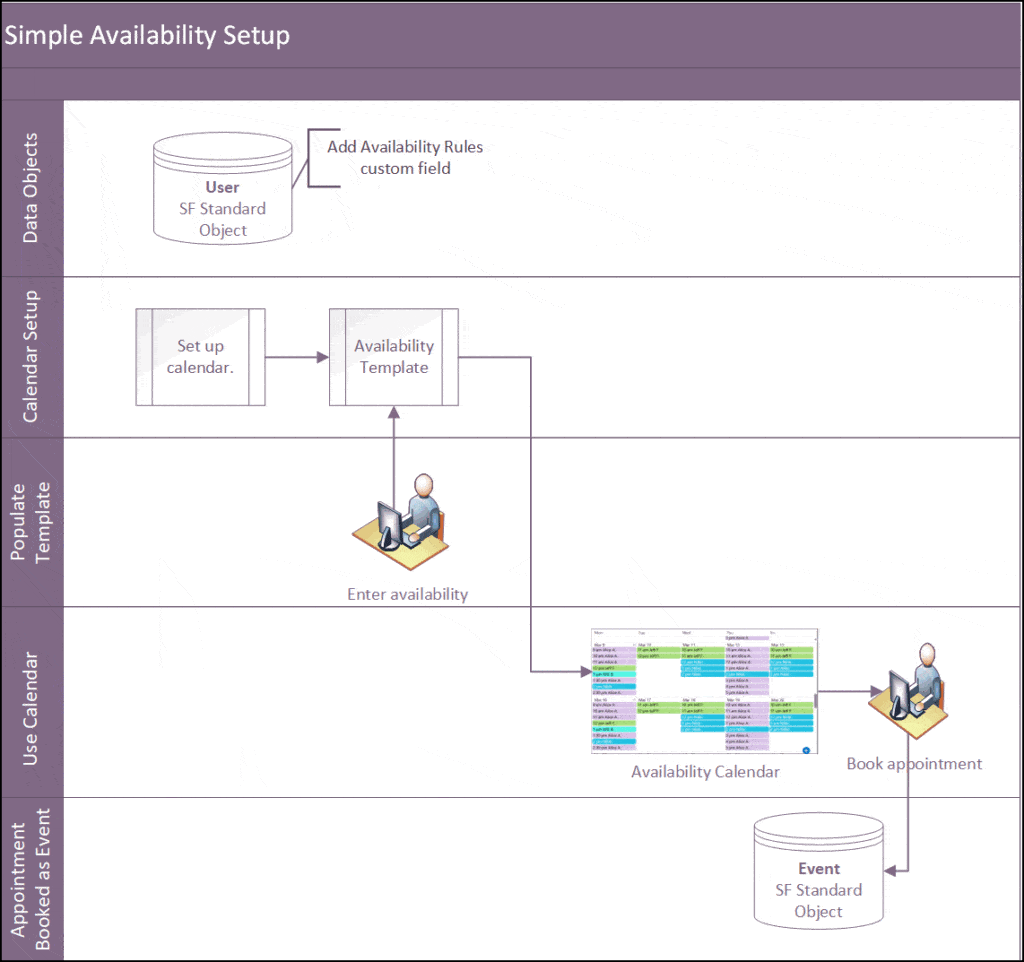
Minimize back-and-forth rescheduling when scheduling department meetings.
Solution
- Add a custom Availability Rules field to the standard Salesforce User object.
- Create the Availability calendar. Saving the calendar will generate the Availability template.
- Each resource enters their Availability on the template. The template is accessed by right clicking the calendar name on the sidebar and selecting Set Availability Template. Alternatively, someone may be designated to populate the availability for all resources.
- Share calendar with department team members.
Complex Availability Setup
Use Case
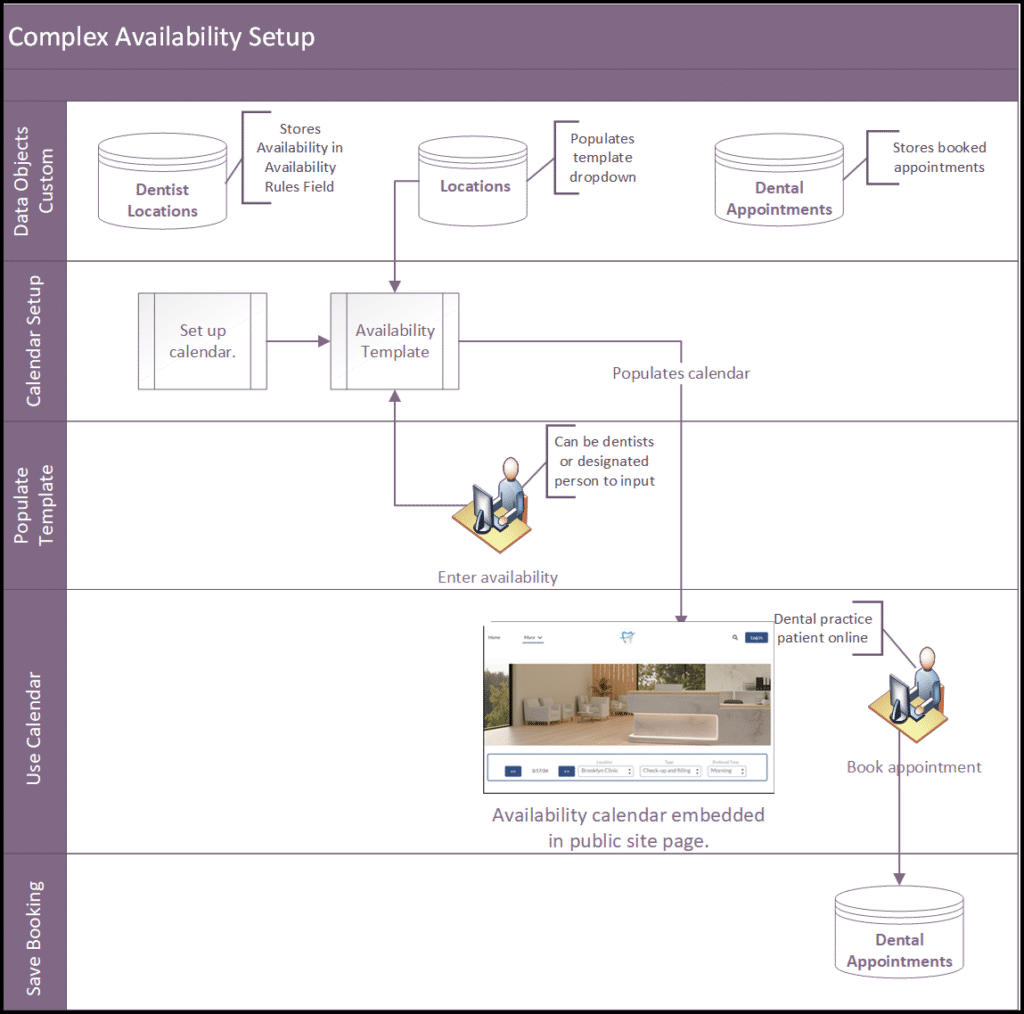
A dental practice with two clinic locations wants patients to be able to self-schedule appointments online choosing a preferred dentist available at a preferred location from a calendar.
Solution
- Create a custom object to store clinic locations.
- Create a custom object to store each dentist and the clinic location(s) where they have availability. This object must have a field of type Text Area (Long) for storing availability.
- Create a custom object to store booked dental appointments. You may want to create a calendar to view these appointments.
- Create the Availability calendar. Saving the calendar will generate the Availability template.
- Each resource enters their Availability on the template. The template is accessed by right clicking the calendar name on the sidebar and selecting Set Availability Template. Alternatively, someone may be designated to populate the availability for all resources.
- If the calendar will be embedded into a public site page, create the page, if necessary. Then embed the calendar into the page.
- Notify the intended calendar users who will be booking resources from the site.