Adding Custom Tabs and Buttons to the Details Popup | LWC
If your business has requirements that go beyond our out-of-the-box features, reach out - we offer custom development services for CalendarAnything to meet your unique needs.
Custom tabs and custom buttons can be configured on the CalendarAnything Details popup. Custom tabs execute Flows that were created using Salesforce Flow Builder. Custom buttons allow users to navigate to external URLs, start a flow, open a lightning component, or navigate to a related record.
In this article:
- How to add a custom tab to the Details Popup
- How to add custom buttons to the Details Popup
- Defining criteria for Dynamic Button Visibility
Related Demo:
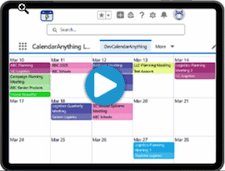
Customizing the Details Popup
This image shows an example of the Details Popup configuration step of the Create and Edit Calendar wizard.

How to add a custom tab to the Details Popup
Flows can update Salesforce data. Consult your system administrator if you are not familiar with Flows in general or with the particular Flow you want to use.
To add a custom tab to a calendar Details Popup, follow these steps:
- Right-click the calendar name on the sidebar and select Edit.
- Select Details Popup from the Edit Custom Calendar menu. The Details popup edit page appears.
- On the Details Popup configuration step, expand the Custom Tabs section.

- Click Add. The Set Custom Tab popup appears.

- Enter a Label for the flow. The application populates the API Name.
- If you have an ID variable, enter the ID Variable Name.
- If the flow uses other variables, configure them using JSON in the Variables section.
- On the Edit Custom Calendar menu, select Calendar Criteria. The Calendar Criteria page appears.
- Expand the Advanced section.
- Select Flow from the Create Form drop-down list.
- On the Edit Custom Calendar menu, select the Create and Edit Popup.
- Define which flow should be used by providing the flow API name and variable names for start and end date/time input parameters. If flow is used to edit or delete records, there are sections to specify which flow should be used.
How to add custom buttons to the Details Popup
To add a custom button to a calendar Details Popup, follow these steps:
- Right-click the calendar name on the sidebar and select Edit.
- Select Details Popup from the Edit Custom Calendar menu. The Details popup edit page appears.
- On the Details Popup configuration page, expand the Custom Buttons section.

- Click Add. The Select Custom Button Type popup appears.

- From the field dropdown, select the type of functionality you want the button to execute. Options include:
- Open Flow in Popup: Executes a specified Salesforce Flow
- Open Component in Popup: Opens specified Lightning component in a popup
- Navigate to Component: Redirects user to specified Lightning component
- Navigate to URL: Redirects user to specified URL
- Open URL: Opens specified URL in a new tab
- Click OK. The Set Custom Button popup appears. Note: Fields vary based on selected button type.
- Use the popup to configure the button. Refer to Configuration fields by button type for field help.
- Click OK. The application returns to the Details Popup step.
- Click Save.
Configuration fields by button type
Click Edit on the row with the button type to be edited. Follow the appropriate button type instructions below.
- Open Flow in Popup
- Label: Text to appear on the custom button.
- Icon: Icon Name from the utility: https://www.lightningdesignsystem.com/icons/.
- Show Label: True or False (Can only be False if there is an icon).
- Active: Whether this button should be active.
- Flow API Name: Name of the flow API. (Find Flows by entering Flows in Salesforce Setup Quick Find field.)
- ID Variable Name: Name of the variable that contains a record ID, if there is one.
- Variables (JSON): Area to enter flow variables in JSON format.
- Width: Width of the popup.
- Height: Height of the popup.
- Open Component in Popup:
- Label: Text to appear on the custom button.
- Icon: Icon Name from the utility: https://www.lightningdesignsystem.com/icons/.
- Show Label: True or False (Can only be False if there is an icon).
- Component API Name: Name of the component API. Format as c: + Component API Name. Example, c:RD_Toast_Message.
- Parameters (JSON): Area to enter component parameters in JSON format.
- Width: Width of the popup.
- Height: Height of the popup.
- Navigate to Component:
- Label: Text to appear on the custom button.
- Icon: Icon Name from the utility: https://www.lightningdesignsystem.com/icons/.
- Show Label: True or False (Can only be False if there is an icon).
- Active: Whether this button should be active.
- Component API Name: Name of the component API. Format as c: + Component API Name. Example, c:RD_Toast_Message.
Note: Component must contain: implements=”lightning:isUrlAddressable” to use this button type. - Parameters (JSON): Area to enter component parameters in JSON format.
- Navigate to URL:
- Label: Text to appear on the custom button.
- Icon: Icon Name from the utility: https://www.lightningdesignsystem.com/icons/.
- Show Label: True or False (Can only be False if there is an icon).
- Active: Whether this button should be active.
- URL: Specific URL to which the application will automatically navigate. Example: https://calwcqa.lightning.force.com. If specifying Replacement Field, you must add /[id] to your URL. Example: https://calwcqa.lightning.force.com/[id]
- Replacement Field Name: Record ID that will replace /[id] in URL if navigating to a Salesforce URL with id.
Example: account__c
Note: This applies to Salesforce URLs only. The application performs a lookup from the Event Details Popup to do the replacement.
- Open URL:
- Label: Text to appear on the custom button.
- Icon: Icon Name from the utility: https://www.lightningdesignsystem.com/icons/.
- Show Label: True or False (Can only be False if there is an icon).
- Active: Whether this button should be active.
- URL: Specified URL to be opened. Note: If specifying Replacement Field, you must add /[id] to your URL. Example: https://calwcqa.lightning.force.com/[id]
- Replacement Field Name: Record ID that will replace /[id] in URL if navigating to a Salesforce URL with id.
Example: account__c
Note: This applies to Salesforce URLs only. The application performs a lookup from the Event Details Popup to do the replacement.
- Update Record:
- Label: Text to appear on the custom button.
- Icon: Icon Name from the utility: https://www.lightningdesignsystem.com/icons/.
- Show Label: True or False (Can only be False if there is an icon).
- Component API Name: Name of the component API. Format as c: + Component API Name. Example, c:RD_Toast_Message.
-
Updating values (JSON): The field for providing values in JSON format for the fields that will be updated.
-
Visible On: The field where the criteria for button visibility can be specified.
- Find Availability (Beta):
- Label: Text to appear on the custom button.
- Icon: Icon Name from the utility: https://www.lightningdesignsystem.com/icons/.
- Show Label: True or False (Can only be False if there is an icon).
- Calendar API Name: The field where the Availability Calendar API Name must be specified. This identifies the Availability Calendar whose availability will be used for this button.
- Add Only Booking Records: When checked, if a Booking table is present in the AVL Calendar, only the Booking table will be updated. The Appointment object table will remain unchanged.
- Parameters (JSON): Area to enter component parameters in JSON format.
- Visible On: The field where the criteria for button visibility can be specified.
Note: This custom button type is currently in Beta as of CA LWC version 1.177
Examples of configuration by button type
- Open Flow in Popup

- Open Component in Popup

- Navigate to Component

- Navigate to URL

- Open URL

- Update Record
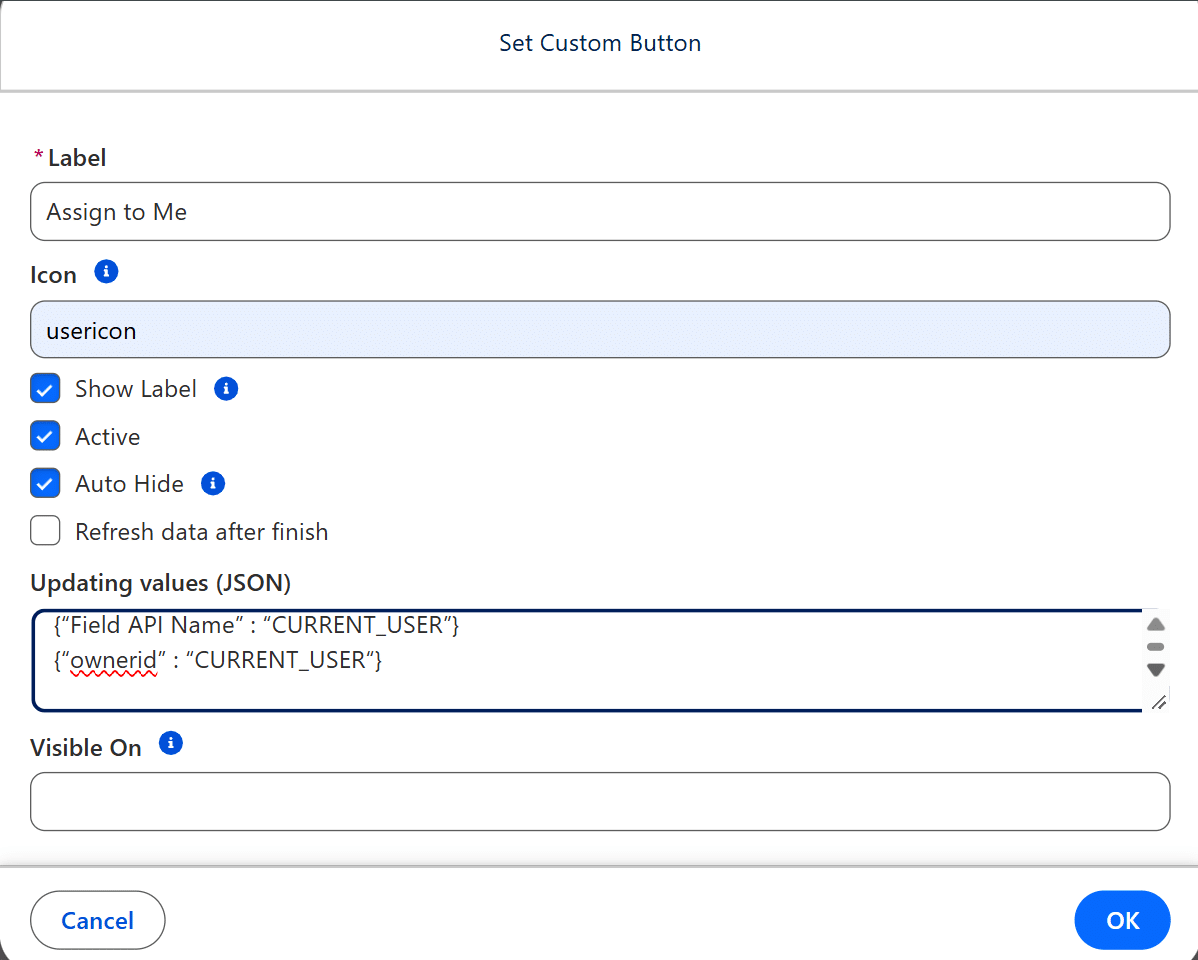
- Find Availability (Beta)
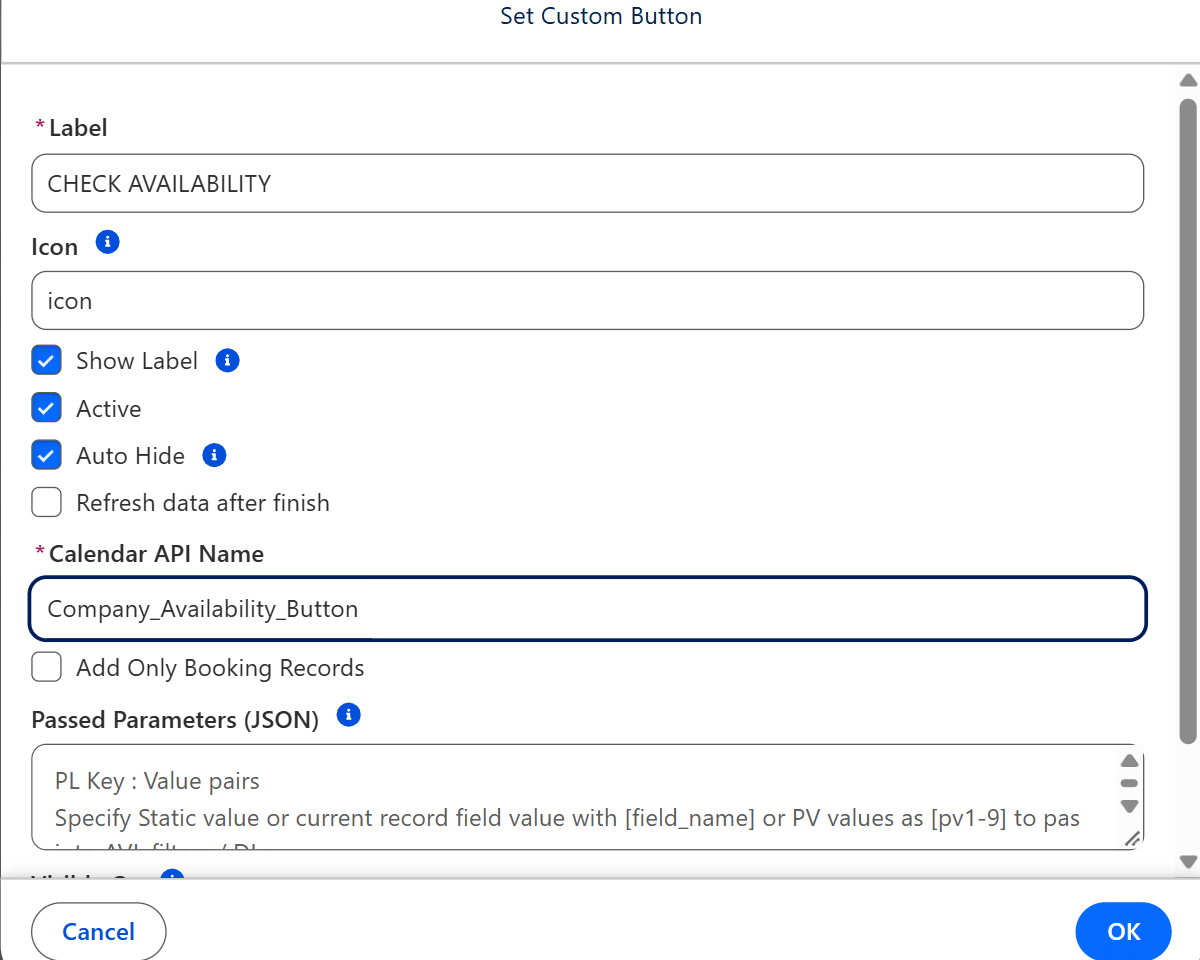
Defining criteria for Dynamic Button Visibility
When adding a new custom button, you can use the “Visible On” field to define visiblity criteria for the custom button.
These can be defined by using parameters and logical operators, such as the following options:
- isnull empty (Example: account isnull)
- notnull not empty (Example: account notnull)
- = equal (Example: subject = Meeting)
- != not equal (Example: subject != Meeting)
- < less then (Example: number < 5)
- > greater then (Example: number > 5)
- <= less or equal (Example: number <= 5)
- >= greater or equal (Example: number >= 5)
- contains – contains text inside (Example: subject contains test)
- notContain – does not have part of text (Example: subject notContain test)
- includes – picklist or reference options list includes field value (split possible options by coma) (Example: subject includes Meeting,Call)
- excludes – does not include in the list of options (split possible options by coma) (Example: subject excludes Meeting,Call)
- startWith – text search (Example: subject startWith test)
- >< – between (value has to use “from-to” format) (Example: number >< 5-7)
- =<>= between and include (value has to use “from-to” format) (Example: number =<>= 5-7)
Additional options:
- #pv1-10 to specify url pv usage (Example: subject = #pv1)
- #pl1-10 to use dynamic list url parameters ((Example: subject = #pl1)
- #FIELD_object*field for filtering panel criteria (Example: subject = #FIELD_account*name
- [field_name] – current record field API name (only as comparison value) (Example: subject = [description])
- CURRENT_USER (current user ID) (Example: ownerid = CURRENT_USER)