Using CalendarAnything’s Microsoft Integration
If your business has requirements that go beyond our out-of-the-box features, reach out - we offer custom development services for CalendarAnything to meet your unique needs.
What Can You Do with the MS Teams Integration?
- Send MS Teams messages from your calendar record
- Schedule MS Teams online meetings directly from CalendarAnything
- Access Outlook calendars that can be created as Web Calendars in CalendarAnything
In this article:
Enabling Add-on Settings
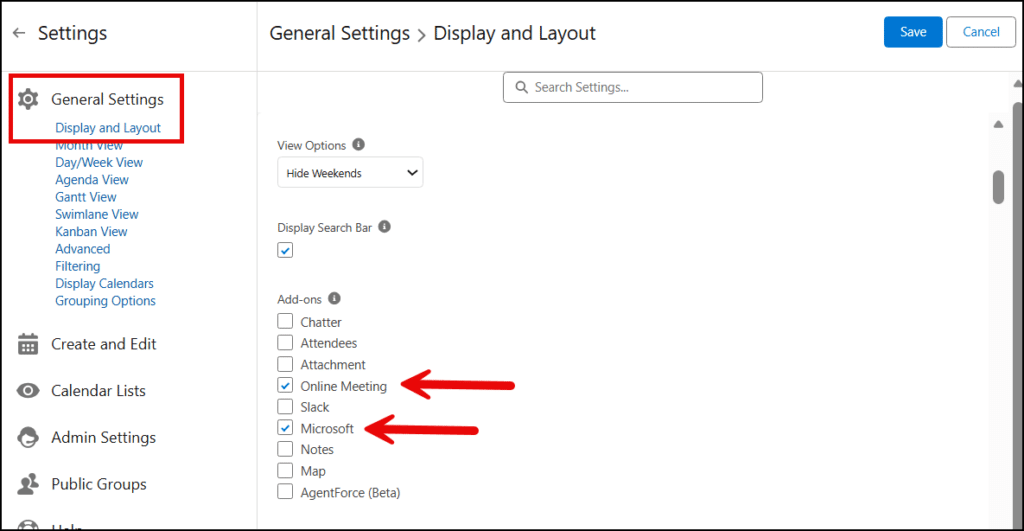
The Microsoft Add-on setting must be enabled to send MS Teams messages from CalendarAnything. The Online Meeting Add-on setting must be enabled to schedule MS Teams meetings from CalendarAnything.
To enable one or both of these settings, follow these steps:
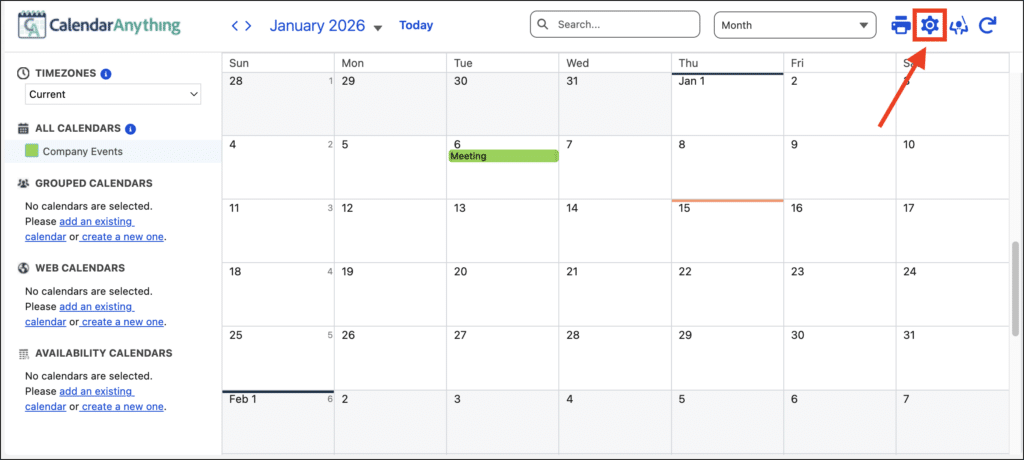
- In CalendarAnything, click the CalendarAnything Settings gear.
- In the General Settings Display and Layout section, scroll to the Add-ons section:
- If the Microsoft checkbox is not selected, select it.
- Select the Online Meeting checkbox if it is not selected and you want the ability to schedule online meetings using MS Teams,
- Click Save if you made changes,
Using the MS Teams Integration
After an admin has set up the integration of Microsoft Teams with CalendarAnything LWC and the Microsoft Add-on is enabled, you should be able to log into MS Teams, provided you have the necessary permissions.
How to Log into MS Teams from CalendarAnything
For as long as you remain logged into the MS integration, you will be able to use the integration’s functionality. If you log out, you will have to log back in again in order to use it.
Follow these login steps:
- Log into CalendarAnything.
- Click the CalendarAnything Settings gear.
- Navigate to Integrations > Microsoft Login.
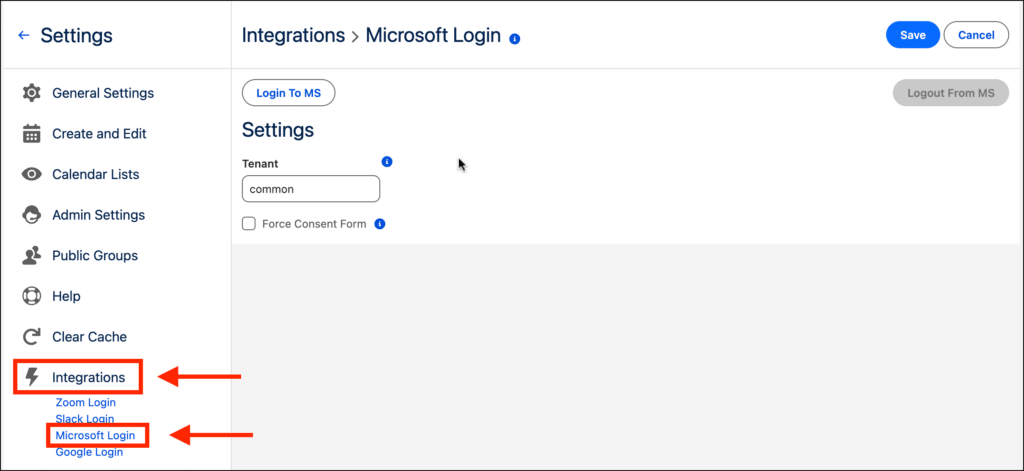
- Click Login To MS. See note below this image.
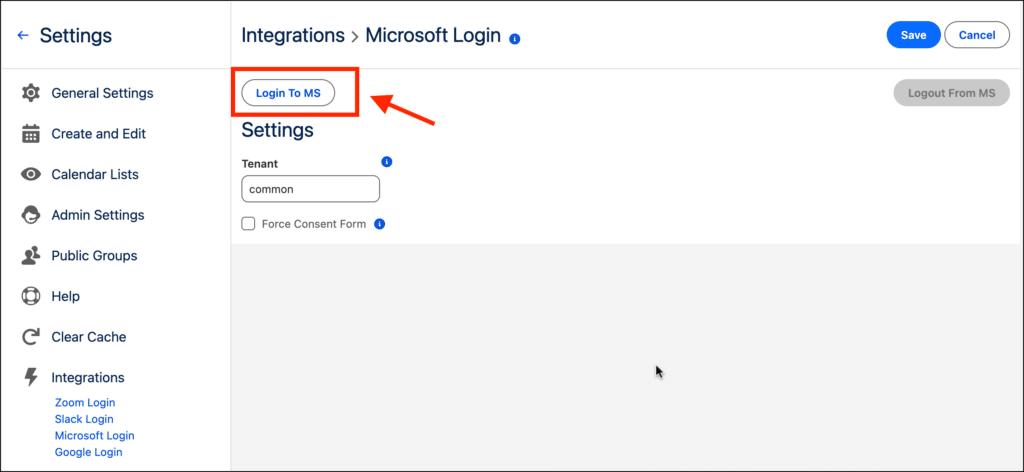
You must get initial approval before you will be able to Login to MS.
How to Send an MS Teams Message
Follow these steps to send an MS Teams message directly from your calendar record:
- Left click on a record within CalendarAnything.
- In the Event details popup, open the Microsoft Teams tab.
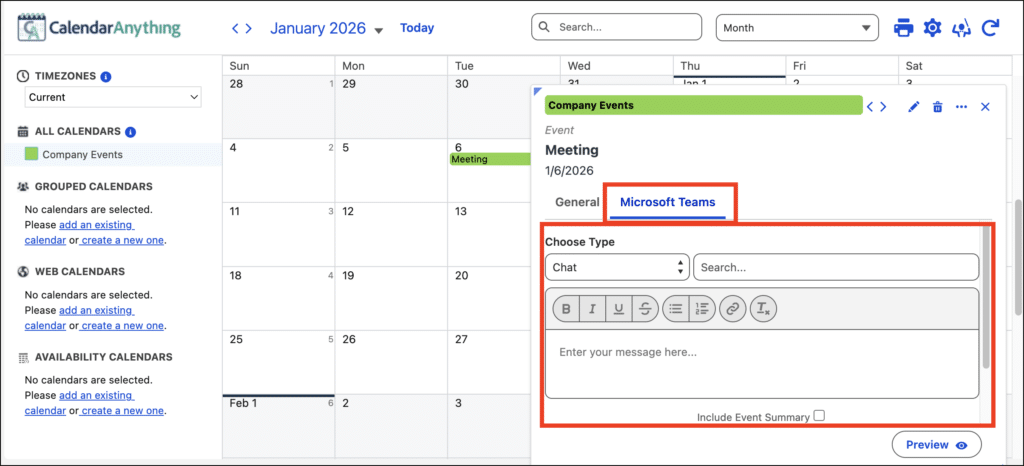
- Choose a Type.
- Search Chat or Teams.
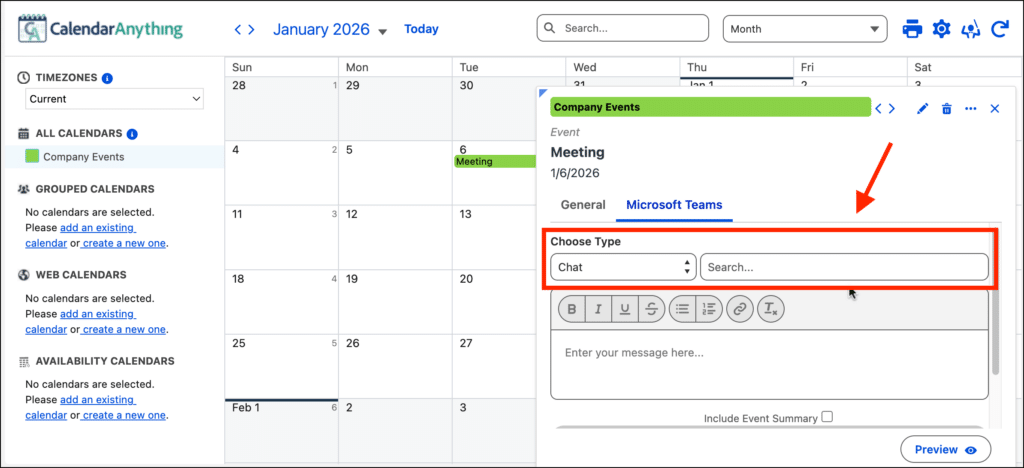
- Add a message and scroll to bottom of page.
- Click Send Message.
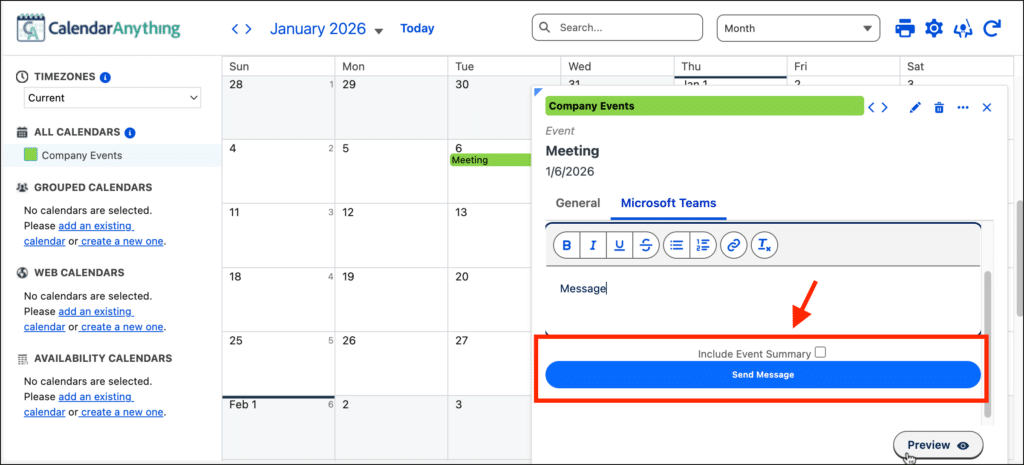
How to Schedule a Teams Meeting from CalendarAnything
Note: The calendar’s primary data object must contain a Long Text Area field that can be used to store online meeting information. Refer to Setting Up a CalendarAnything Microsoft Integration – Admin Guide and consult with your admin if necessary.
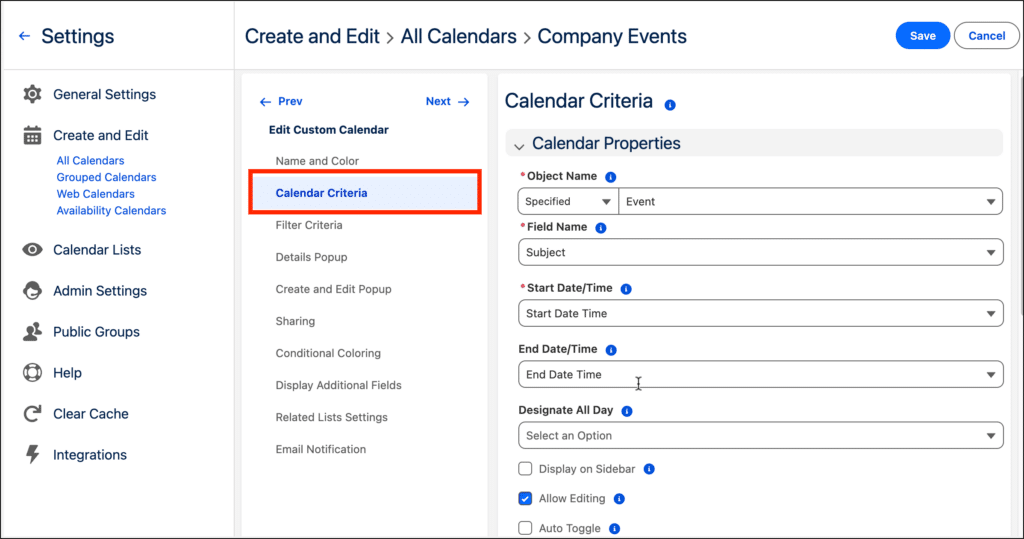
- On the sidebar, right-click your calendar name.
- Select Edit.
- Select the Calendar Criteria step.
- Expand the Integrations section and select a Microsoft Teams Field.
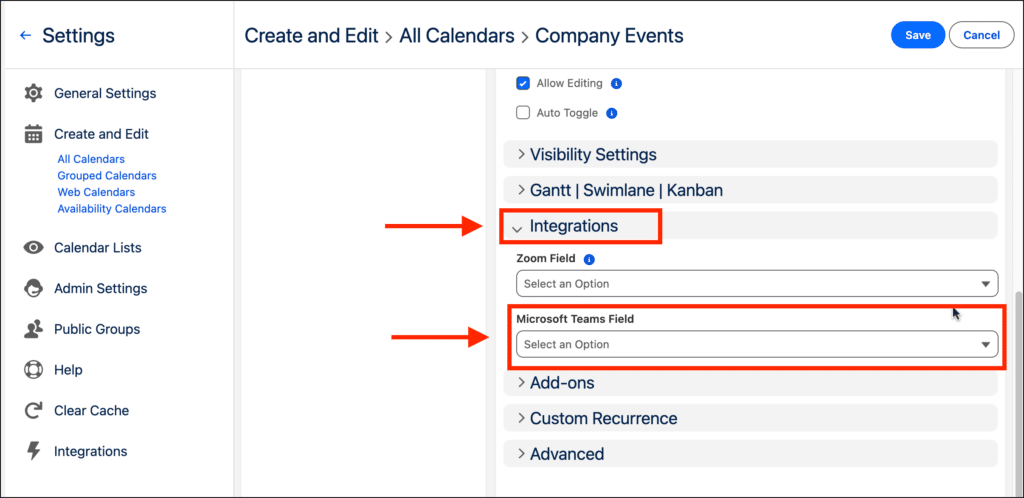
- Click Save.
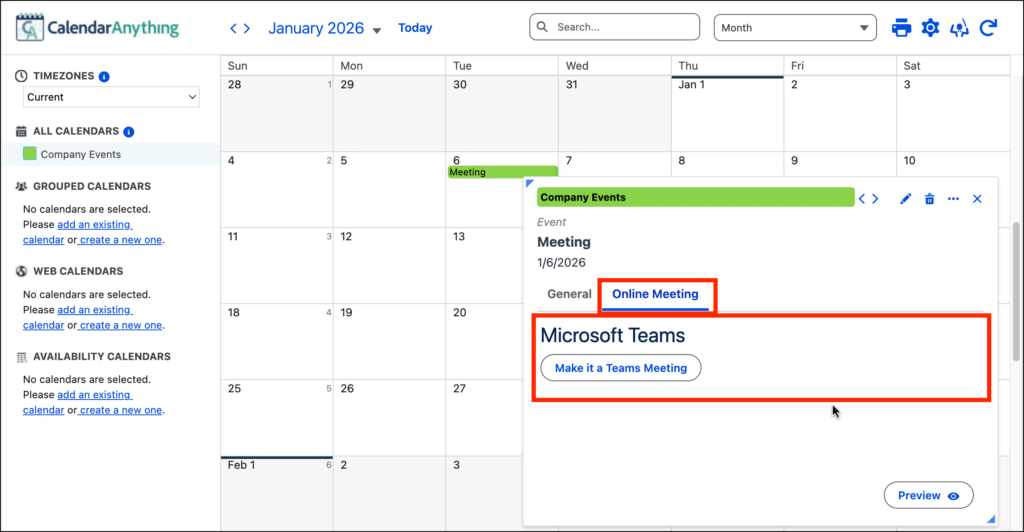
- Create a meeting:
- Left click on a record within CalendarAnything;
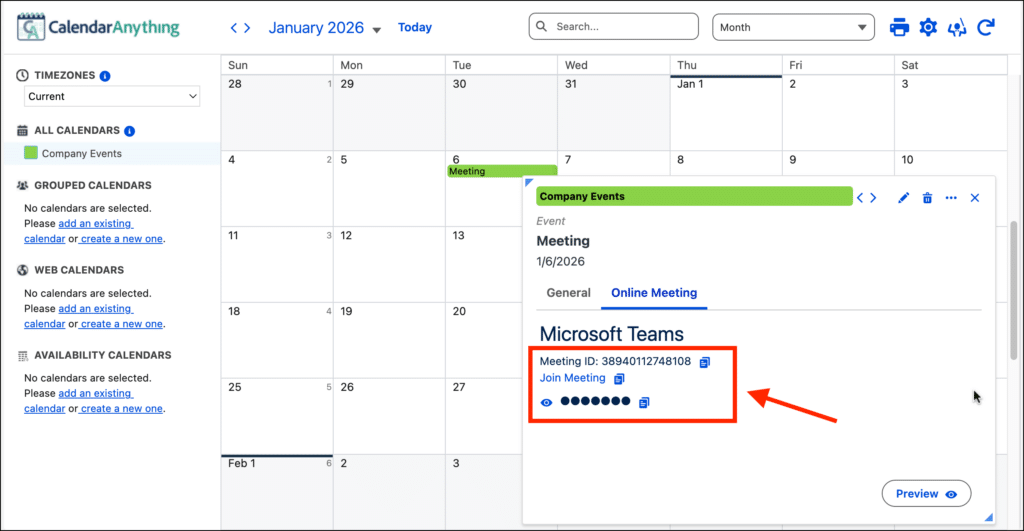
- In Event Details Popup, open the Online Meetings tab.
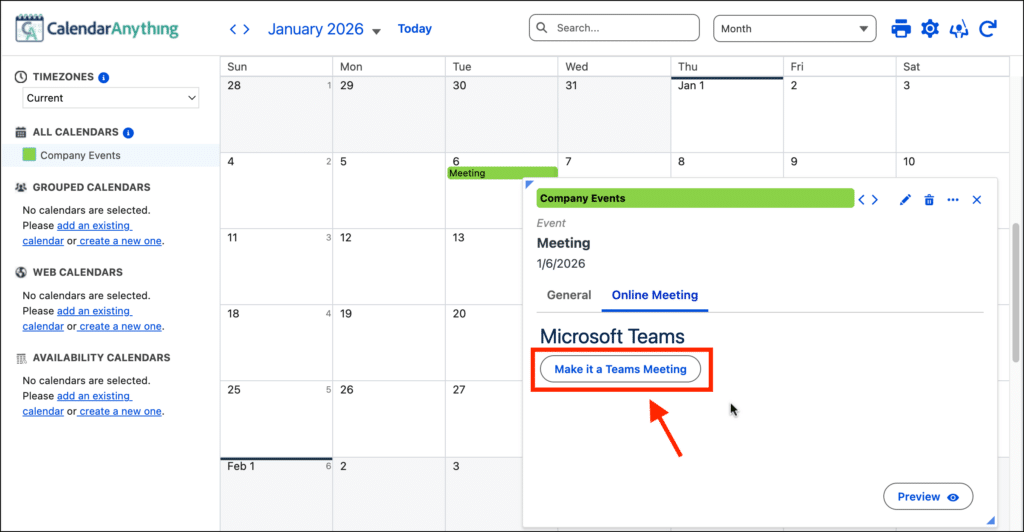
- Click Make it a Teams Meeting.
How to Log Out from Microsoft
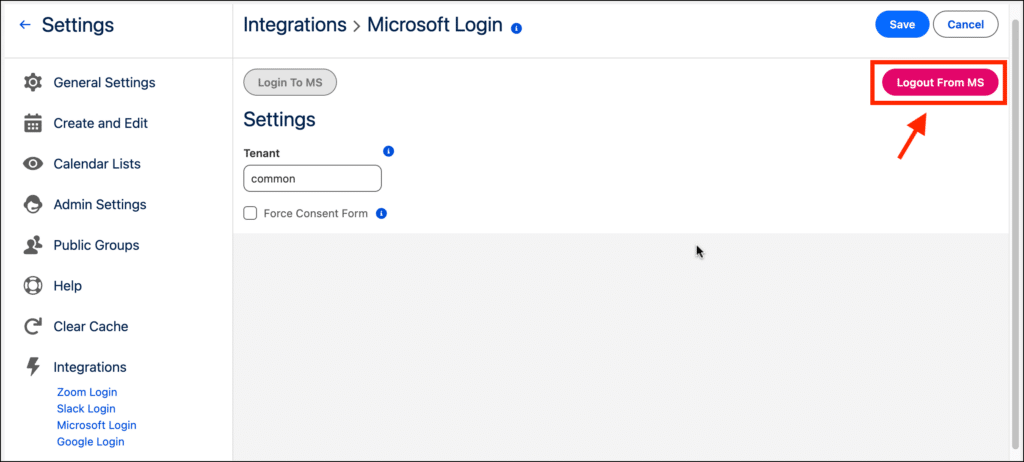
If you want to log out from MS, perform the following steps:
- Click the CalendarAnything Settings gear.
- Select Integrations > Microsoft Login.
- Click Logout From MS.