Related List Items – How to Add, Edit, Delete from Calendar
A calendar may be configured to include one or more Related Lists. Initially, each list appears on the More tab of the Details Popup. In some cases, you may see a separate tab for the last selected Related List.
When you view a Related List, you have the option to add items to the list as well as edit or delete existing items.
How to View Related List Items
To access a Related List associated with a calendar record, follow these steps:
- Click the calendar record to bring up the Details Popup.
- If there is a tab for the Related List, select it.
- If there is no tab for the Related List, click the More tab and select the list from the dropdown.
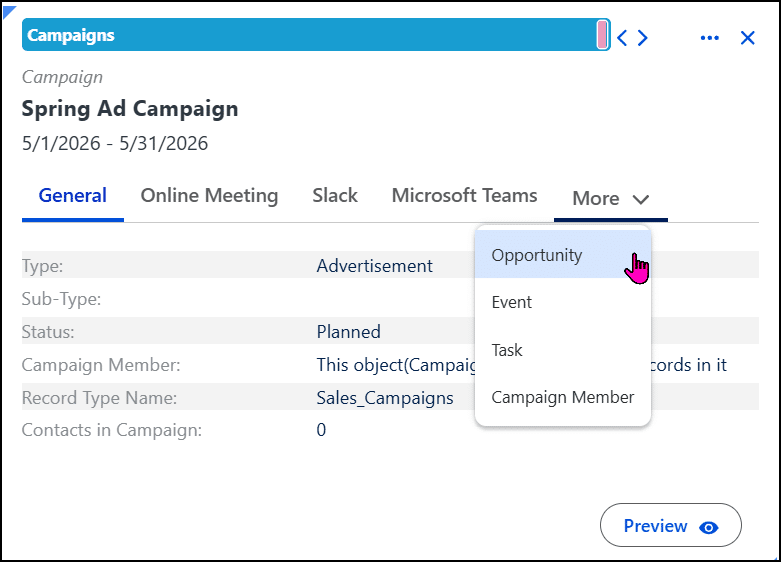
The application creates and opens a separate tab for the selected Related List and displays the Related List items.
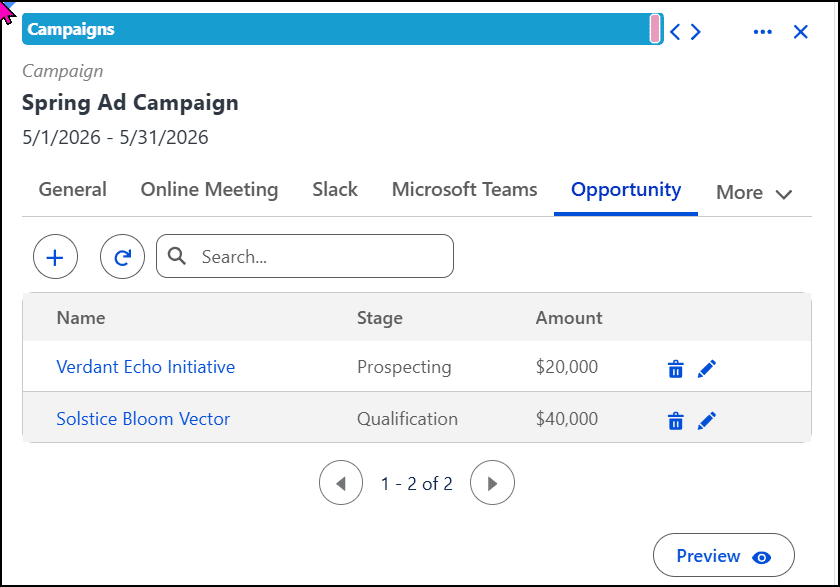
How to Create a Related List Item
To create an item, follow these steps:
- Follow the procedure above in How to View Related List Items.
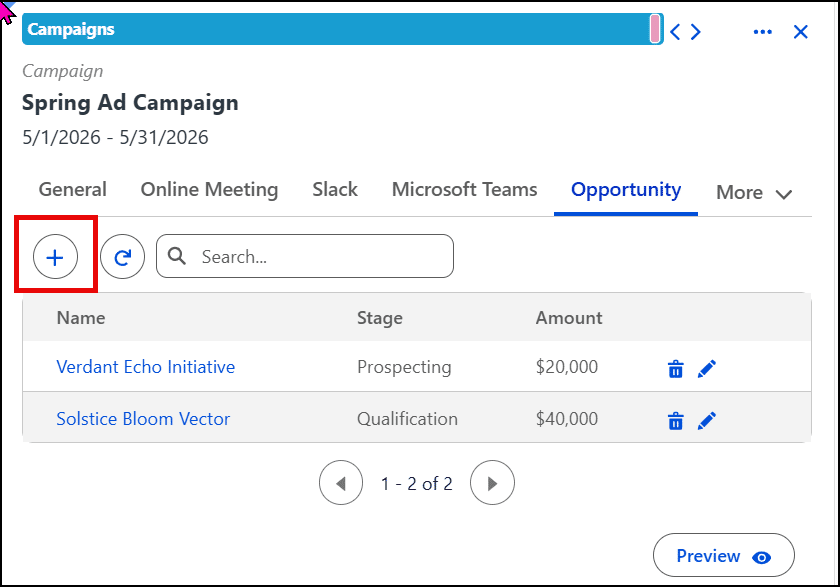
- Click the + sign above the list of items. The application displays the appropriate create form.
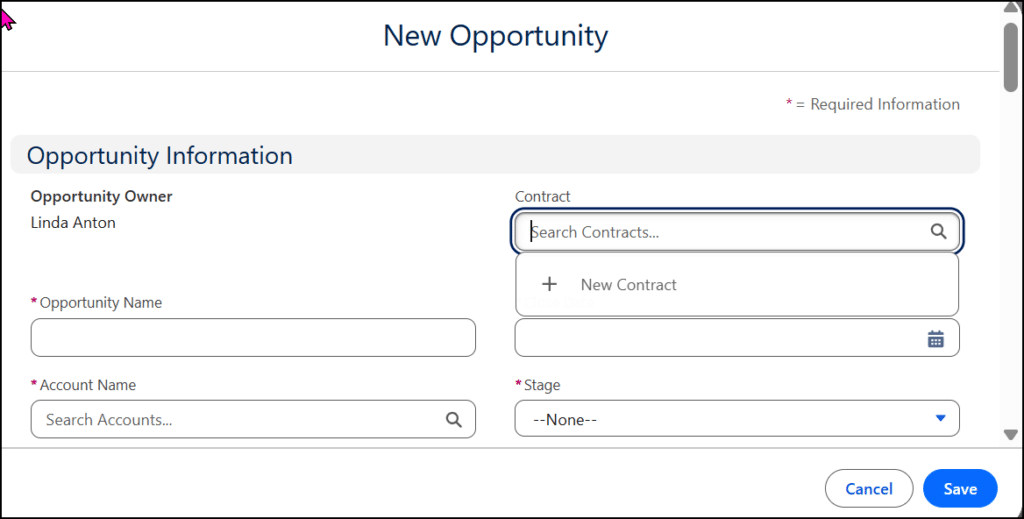
- Fill in the form with the required information.
- Click Save.
How to Update a Related List Item
To update a Related List Item, follow these steps:
- Follow the procedure in How to View Related List Items.
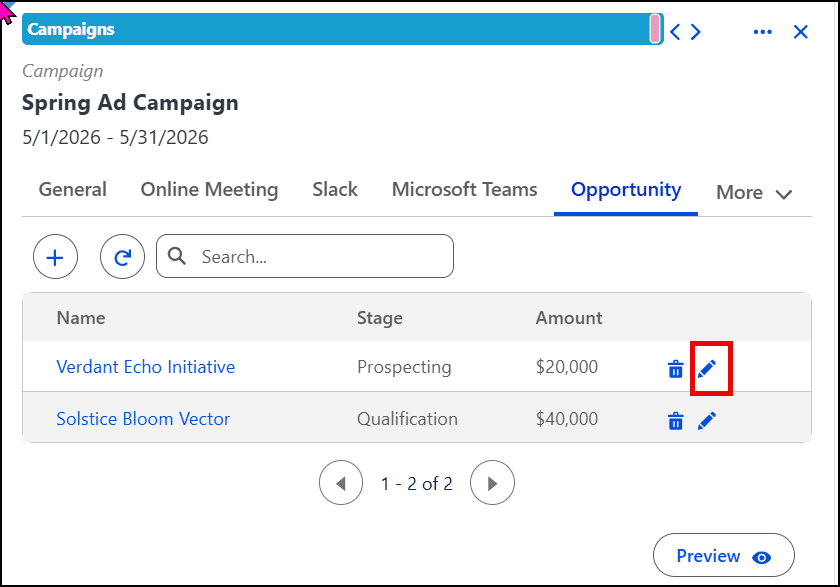
- Click the Edit (pencil) icon on the item you want to update. The application displays an Edit form for the selected Related List item.
- Make changes as needed.
- Click Save.
How to Delete a Related List Item
To delete a Related List Item, follow these steps:
- Follow the procedure in How to View Related List Items.
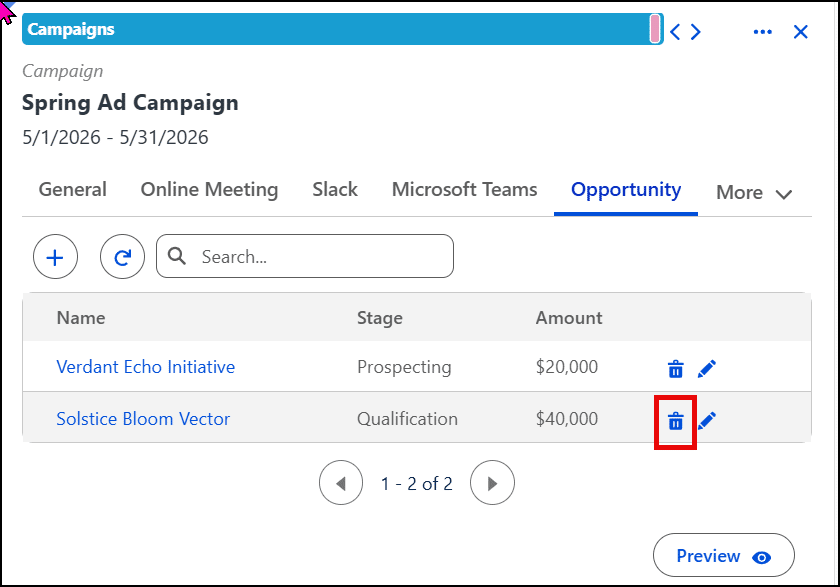
- Click the Delete (trash can) icon on the item you want to delete. The application immediately deletes the selected Related List item.