Grouping in CalendarAnything LWC
If your business has requirements that go beyond our out-of-the-box features, reach out - we offer custom development services for CalendarAnything to meet your unique needs.
This article explains grouping in CalendarAnything. Grouping is available for the Day Grouping, Gantt, Swimlane, and Kanban views. Settings related to grouping may apply to one, multiple, or all views that support grouping.
In this article:
- Grouping Options
- Gant View Grouping
- Swimlane View Grouping
- Kanban View Grouping
- Day View Grouping
- Admin Settings for Grouping
Grouping Options
Access: CalendarAnything Settings > General Settings > Grouping Options
The Grouping Options in General Settings, for the most part, apply to all views that can be grouped.
Grouping Panel Settings
The grouping panel applies to views that support grouping. To see the panel while viewing a calendar, click a selection field in the grouping area. To see options for a given section, click + next to the section label.
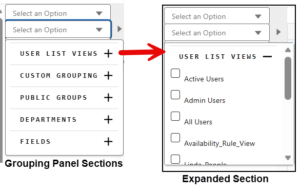
Configuring the Grouping Panel
Following is a list of checkboxes that appear under Grouping Options in General Settings. Use the checkboxes to choose which sections appear in the grouping panel.
- Fields
- User List Views
- Custom
- Display Departments
- Display Queues
- Display Public Groups
- Display Subgroup Users
- Group Role Users
- Group Hierarchy Users
Other Grouping Options
- Hide Empty Groupings: Hides groups without data.
- Picklist Sorting: Sorts grouping fields in the order defined in the picklist as opposed to alphabetically.
- Grouping Users Title Fields: Enables you to customize and extend labels of user-based groupings. The setting must contain the API field name and be in all lower case. Multiple values can be comma separated.
- Split Multipicklist Values: Splits each grouping field selected from a multi-picklist into a separate group. (Applies only to Kanban view.)
- Auto-Populate Grouping Values upon Quick Creation: Automatically populates the Create and Edit Popup with the default grouping value.
- Grouping Mode: Defines grouping principals for Swimlane, Kanban, and Day Grouping views.
Gant View Grouping
Access: CalendarAnything Settings > General Settings > Gantt View
- Default Time Grouping: Default grouping of records in Gantt view. Options: Hour, Day, Week, Month, or Quarter.
- Display Collapsed Grouping by Default: Automatically opens any collapsed groupings.
Swimlane View Grouping
Access: CalendarAnything Settings > General Settings > Swimlane View
- Default Time Grouping: Default grouping of records in Swimlane view. Options: Hour, Day, Week, Month, or Quarter.
- Display Group Filter: Displays group filters on the calendar in Swimlane view.
Kanban View Grouping
Access: CalendarAnything Settings > General Settings > Kanban View
- Kanban Grouping Duration: Contains options to filter record by time period.
- Kanban Split by Dates: Contains grouping options.
- Kanban Grouping Interval: Contains option to set a date interval.
Refer to CalendarAnything Kanban View.
Day View Grouping
Access: CalendarAnything Settings > General Settings > Day/Week View
Within Day Grouping View, you can use grouping settings available in Gantt, Swimlane, and Kanban views.
Refer to Day/Week view section of CalendarAnything Views.
Admin Settings for Grouping
Access: CalendarAnything Settings > Admin Settings > Custom Grouping
This is a menu option that enables admins to create object-based custom groupings. These will show up as options on the CUSTOM GROUPING section of the grouping panel.
For details about custom grouping, refer to Custom Grouping for Admins.